
Summary
Each party on a matter is offered an Opus 2 Transfer channel, which will be used for providing documents for upload to the platform and likewise for providing any exports we process for them. Access to Opus 2 Transfer is provided free of charge for all users and where possible, we want to encourage parties to use Opus 2 Transfer rather than their own internal file sharing sites for ease of management on our end.
Process
To create a channel, open the relevant Opus 2 Transfer site (https://transfer-uk02.opus2.com/ for UK and MENA instructions and https://transfer-sg.opus2.com/ for SG and HK instructions) and then click the + icon in the top left-hand corner of the screen.
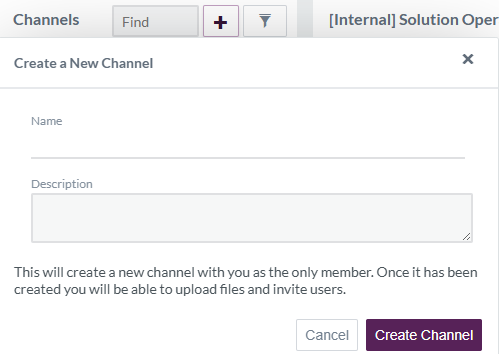
The format for the name of the channel will be the same as the relevant workspace on the platform:
- Case Code - Case Name [Party Name]
For example: 12345M - Apple & Ors v Microsoft & Ors [Clifford Chance]. The description does not need populating so once the name has been inputted, select Create Channel. Once set up we need to add the relevant Internal Group to the channel, which allows the Opus 2 Team to access the channel. To do so, in the right-hand pane select Tools > Add Groups... and then select the correct Group as in the list below.
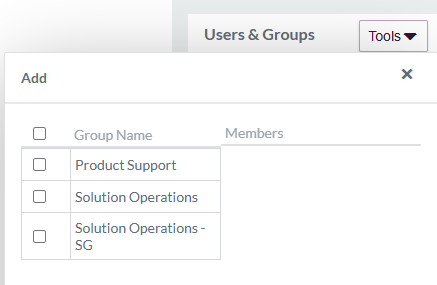 Once the internal group has been added, external users can be added by selecting Tools > Add Users...
If we are instructed to set up a channel for a Disclosure Provider, we should create a separate channel from the main party channel. This is because confidential information regarding the case may be sent in the channel over the lifecyle of the matter that the Disclosure Provider is not privy to - in the above example the channel name would become - 12345M - Apple & Ors v Microsoft & Ors [Clifford Chance - LightHouse] for example, where LightHouse are Clifford Chance's Disclosure Provider. We would also need to confirm in our response that we have set up a separate channel and ask the Legal Team to confirm who should be added to the channel for oversight purposes.