
Summary
Minor general improvements / bug fixes in v7.17 relating to Log in, AI Assist & Sort and and the introduction of a new feature, Manage Folders.
Notes
For Clients
- Log In Improvements
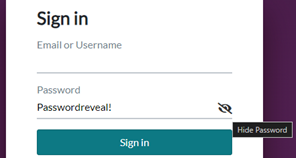
- Users now have the ability to press the 'eye' icon to reveal the text they are typing in to the password / memorable word box.
- Memorable word on iPad no longer auto capitalises, so should be fewer memorable word log in issues on iPad.
- AI Assist > Query > Sources Improvement
- When running a Query in AI Assist, users can select the Source information to change the preview / transcript / document to the relevant location of where the information was taken from.
- General improvements on speed for Source data to appear.
- Sort Improvements (Advanced multi-level sort)
- Ability to right click on a folder > Sort > Advanced and then apply a multi-level sort to the folder (and subfolders), default should be Bundle/Tab. Makes sorting custom bundles / tags more intuitive and easier for users.
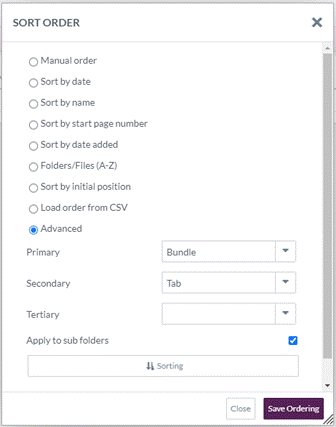
- Ability to right click on a folder > Sort > Advanced and then apply a multi-level sort to the folder (and subfolders), default should be Bundle/Tab. Makes sorting custom bundles / tags more intuitive and easier for users.
For Admin
- Manage Folders
- Allows Admin to import / export Excel index of the folders, so that we can change the names, the structures and colour applied to the folders in bulk.
- Tool Itself – Located in Documents page > Tools > Manage Folders. Buttons / Options explained as followed:
- Export Report (CSV / XLXS) – Does what it says on the tin.
- Fields:
- Folder ID – Unique ID for matching to Folders.
- Name – Name of that folder.
- Folder Path – Shows the parent path for the folder. Includes the end folder value.
- Colour – Hex code of the folder colour.
- Using the Import / Export
- Requirements
- ID Field - Include the ID value if you want to update existing value, acts as unique identifier.
- Delimiter - Include BACKSLASH as delimiter between folders.
- Import File Type - Import as CSV (XLSX option has issues at the moment).
- Two field Minimum - Must include two field columns for valid import.
- In Browser Process - Is an in-browser process so if importing hundreds, need to let it run. Shouldn’t crash though due to way the data runs but helps to have console open.
- Actions – Need to do one at a time, either change Name or Folder Path, do not try to do two things at once as you will get a logic conflict. I.e. changing the name of a top-level folder but also importing the subfolder paths in at the same time would cause a new top-level folder with the old name to be created as per the path! As shown in the screenshot below, taken from the report:

- Updating Name– Only include ID + Name.
- If you include both Name + Folder Path, the folder name changes must match. If the end folder name in the Folder Path does not match Name, it will not make the change and will be an error.
- Moving– Only include ID + Folder Path.
- If you include both Name + Folder Path, the end Folder Path value must match the Name, otherwise will not make the change and will be an error.
- Creating– Only include Colour + Folder Path. Anything with a name that does not match to an existing folder will create a new folder.
- Colour value can be left blank, just need to include the column header.
- Updating Name– Only include ID + Name.
- Method:
- Press Select File
- Match on: - Should be Folder ID by default, if amending existing folders. If creating new folders, change to Folder Path
- Press Match
- Check results counter in bottom left
- Press Import
- Pop up appears to confirm what has either been successfully actioned and if any issues, with a ‘Download Import Report’ button to show both – at the moment this is the only way to get the report so make sure you download before refreshing!
- Once downloaded, click OK to refresh page and view changes
- Requirements