
Summary
Welcome to the Solution Operations team! We are responsible for building and managing electronic hearing bundles on the Opus 2 platform. The parties involved on litigations, arbitrations, inquiries and inquests will sign up to the use of the platform and we will be involved from that point onwards until the end of the hearing/settlement.
Our role within standard multi-party instructions is primarily to facilitate their use of the platform by:
- Managing the shared content in line with client instructions (as they are unable to do this themselves)
- Assisting with queries our clients have, which are usually either on how they can use the platform to get a particular result/whether a particular request they wish to make of us is possible and how to instruct us to do it
- Troubleshooting problems clients experience on the platform
- Escalating problems to the software team where necessary
This guide acts as a checklist for some of our most important daily tasks that we undertake - they act as the foundations to the role and will be built upon throughout your time in the team.
What is the Opus 2 platform?
- Hyperlinking – allows users to click on a reference within a witness statement and be taken to that destination document
- Custom Bundles/Tags – enables parties to (privately) collate documents for general purposes or for something specific, such as the preparation of witness cross-examination
- Central control of content – as we manage the content on the platform and make the changes viewable to all users, there is no need to courier replacement/insert documents to numerous individuals to update their hardcopy sets
- Collaborate on the documents with notes within the platform, and setting who in your team can see your annotations
- Conduct searches across the content of documents as well as the information assigned to them
- Create a timeline of events within a matter using the ‘Chronology’ tool
- Build and manage supporting information for witness or key individuals on a case through the ‘Characters’ tab
- View live and historic transcripts on the platform
Platform Set-Up
A typical case is made up of a single Master workspace and one or more Mirror workspace. The relationship can be visualised as follows: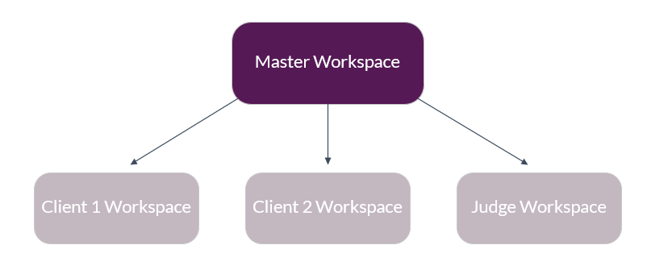
The Master workspace is where the team carries out most of our work. It is the workspace where changes are made to the shared content (new documents, movements, replacements, etc). The changes we make there are then “synced” to the mirrors upon request, which create copies of everything on the Master workspace (with some exceptions) and replicates the structure.
The mirrors are where our clients work. Each firm/party is provided with their own mirror, within which they will have whatever we provide them from the Master, as well as their own work product. Things such as annotations on documents, custom bundles, or documents the clients upload directly to the platform are all located on their own mirror.
The data traffic is one-way: data goes to the mirrors from the Master workspace, but nothing from the mirrors is sent to each other or to the master. i.e. they are isolated and can only receive changes from the master workspace.
Equipment Checklist
Equipment - You should have received the following equipment from the company:
- Laptop
- Laptop charger
- Two screens
- Two cables to connect the screens to your laptop (One HDMI cable and one USB-C cable)
- Wireless keyboard and mouse
- Headphones
Software - You should have access to the following software on your laptop:
- Adobe Acrobat DC - Signed in with a Pro License
- AnyDesk
- Beyond Compare
- Case Control
- Case Tracker
- Direct Access set to London
- Microsoft Office Suite (Outlook, Word, Excel, PowerPoint)
- Remote Desktop
- RingCentral - Ext./Phone Number
- Slack
- X Drive + Y Drive
Bookmarks - In terms of your Google Chrome set-up, you should have access to the following sites and they should all be bookmarked on your browser as you'll be using them on a daily or weekly basis:
- Deployment - UK + SG
- Freshdesk
- IT Service Desk
- Payslip
- People HR
- Pleasant Password Server
- Sharepoint (Bob)
- Team Timesheet
- Transfer-SG
- Transfer-UK
- Transfer-UK02
If you have any issues with the above (e.g. you've not received them or you can't access them), just flag it with a Solution Operations Manager/Senior Solution Operations Lead and they'll be able to assist or direct you to the right person who can.