Summary
When a case is handed over, it needs to be assigned to a web server. As resources are limited on servers, the workload and data size should be spread across servers where possible to ensure there is enough space and prevent services getting overwhelmed and failing.
We've set out how servers should be allocated below.
Checking Disk Space
An export requires three times the size of the export data on a server i.e. if a bundle you need to export is 10GB, you need 30GB of space on the server to be able to export it. The checking process is as follows:
- Check the size of the bundle(s) you are exporting.
- Export a CSV of all bundles that you need to export.
- If any of the bundles are a ‘Core Bundle’, you will need to exclude this folder from the CSV under 1a and export it separately. Use the Bulk Organise tool to search for the Magnum IDs and export the CSV from here as this will include the file sizes of the original documents – the CSV of the custom bundle entries will not have an accurate file size.
- The Realtime folder, private folders or custom bundles do not need to be included when checking space for an offline export of a matter. In exceptional circumstances where private folders and/or custom bundles are being included in an offline export, CSVs will be needed, noting point 1ai regarding CSVs for custom bundle entries.
- Open the File Size Calculator ("Y:\UK\4. Team Documents\Toolbox\File Size Calculator (CSV)\CSV File Size Calculator 1.2.xltm"). Add the Magnum IDs and File Sizes from your exported CSV(s) and click ‘Calculate Data Size’.
- Columns C-J of the above sheet should be populated and the value in column I (Export Value GB) is the space needed on the server to run the export:
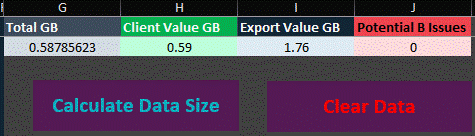
- Column G gives you the size of all the data in the CSV and column H is a rounded value of G which can be given to clients. Any file size errors will be listed in column J.
- Export a CSV of all bundles that you need to export.
- Check there is enough space on the server for the export (Export Value GB above).
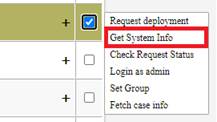
- Navigate to the server through Deployment however, instead of selecting ‘Login as admin’ select ‘Get System Info’:
- Check the value listed under ‘Disk space > Avail’:
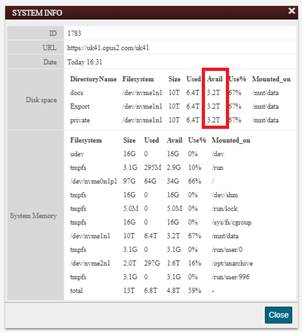
- On the basis the number above exceeds the ‘Export Value GB’, the export can be run. If the above number is smaller, a ticket will need to be made for Product Support, requesting for space to be cleared on the server.
- To ensure the server doesn’t fill up and crash, it is best to ensure there is still some space following the export e.g. if the Export Value is 100GB and the space available is 110GB, it is best to ask for space to be cleared.
- Navigate to the server through Deployment however, instead of selecting ‘Login as admin’ select ‘Get System Info’:
Server Allocation
When choosing a server for a case, there needs to be enough space for the bundle itself as well as a full export of it. Following an audit run by Product Support, the average PDF file size has been calculated as 2MB meaning a bundle of 1,000 documents would roughly be 2000MB (2GB) and the Export Value would be roughly 6000MB (6GB).
Using the above example, the server you choose would need at least 6GB listed under ‘Get System Info’ (Sections 2a and 2b above). As with the export, it’s best to make sure there is enough space plus extra to reduce the risk and possibility of it filling up / breaking. A ticket will need to be made for space to be made on a particular server as above (2ci).
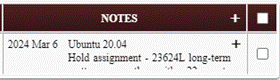
If a server already has a heavy caseload or a reason why it should not be allocated for any new matters, a note should be included on Deployment under the ‘Notes’ column: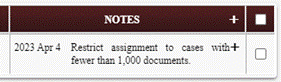
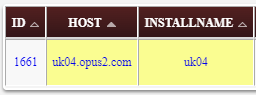
New matters should also only be assigned to standard ‘Secure’ servers and not archive servers – you can tell if a server is an archive server if the ‘installname’ on Deployment is the same value as the server as opposed to ‘Secure’:
Standard server:
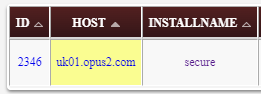
Archive server: